

For freelancers
The time tracker for freelancers who bill by the hour
The best time tracker for a freelancer is the one you start every single time, that knows what each client pays, and that turns your hours into an invoice without retyping them. WorkHours does this from your phone: one tap starts the timer, a tag records which project the time belongs to, Reports shows where your week went, and the same hours become a PDF invoice with a day-by-day timesheet attached.
At a glance
- One-tap timer that keeps running in the background
- Tags per project, with time per project in Reports
- Your hourly rate turns every session into earnings
- PDF invoice and timesheet from the hours you tracked
- Add a session afterwards if you forgot to start the timer
How WorkHours handles freelance work
Capture billable time wherever the work happens
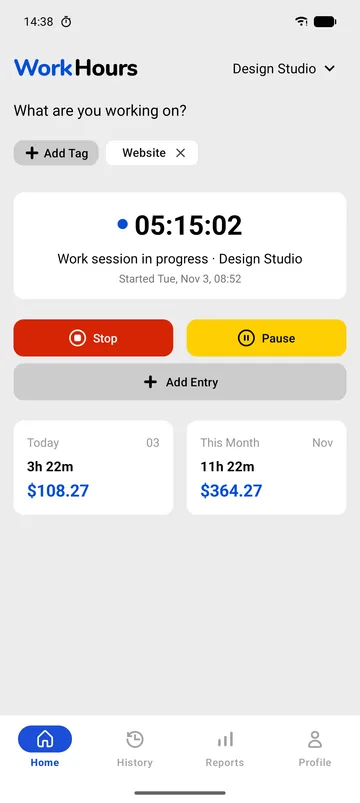
Client calls, site visits and late fixes rarely happen at a desk. Tap Start on your phone and the timer keeps counting in the background, with today’s hours and earnings on the Home screen.
Before you start, answer “What are you working on?” with a tag such as Website or Client meetings. Each session carries its tag into your reports and timesheets.
- Today and this month, in hours and money
- Add Entry for time you tracked on paper
- Edit start and end times in History
See which projects your hours go to
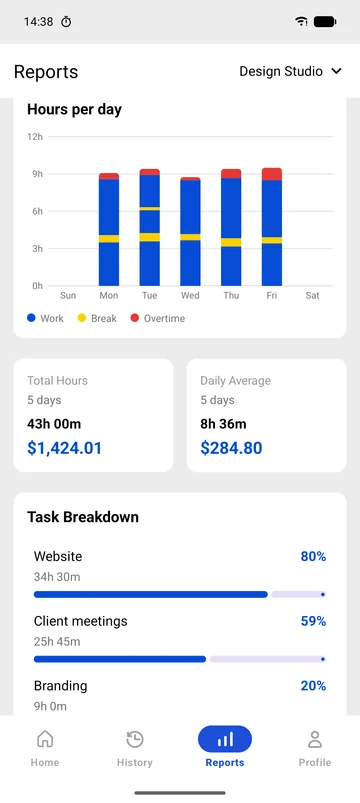
Reports adds up the week or the month: total hours, daily average and what you earned at your rate. Task breakdown then lists every tag with its own hours, so the website, client meetings and branding work each show up separately.
Use it to quote the next project with real numbers, or to spot a client whose “quick changes” keep growing.
- This week, last week, this month, last month
- Hours and earnings per period
- Time per tag in Task breakdown
Turn the month into an invoice
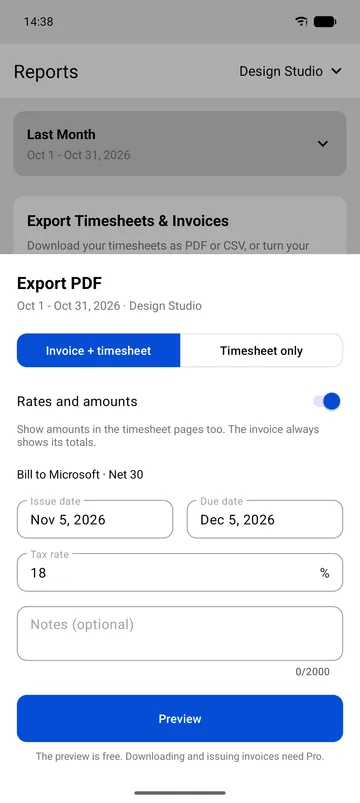
At the end of a billing period, open Export PDF from Reports. Choose Invoice + timesheet, check the client, issue and due dates, add the tax rate and a note, and preview the invoice.
The invoice lists regular hours and overtime at their own rates, adds tax and the total due, and attaches every day you worked as an appendix. Your client sees exactly what they are paying for.
Set it up in five minutes
- Download WorkHours and open your job. Name it after your main client and enter your hourly rate and currency.
- Add the client’s details and your tax rate so they appear on the invoice.
- Tap Start when you begin work and pick a tag for the project.
- Pause for breaks; break time is kept apart and never billed.
- At the end of the month, open Reports, tap Export PDF, choose Invoice + timesheet and preview it.
Free vs Pro
A freelancer with one main client can track everything on the free plan. Pro is for sending invoices and timesheets, and for giving each client a job with its own rate.
| Feature | Free$0 | Pro$3.99 |
|---|---|---|
| One-tap timer and break timer | Included | Included |
| Tags per project and Task breakdown | Included | Included |
| Earnings from your hourly rate | Included | Included |
| Weekly and monthly reports | Included | Included |
| Invoice preview | Included | Included |
| Separate job per client, each with its own rate | 1 job | Included |
| Download and issue PDF invoices | Not included | Included |
| PDF timesheet and CSV export | Not included | Included |
| Custom date range, e.g. the 15th to the 14th | Not included | Included |
Pro is $3.99 a month in the US and starts with a 7-day free trial. It is billed through the App Store or Google Play in your local currency, and you can cancel from your store account.
Download WorkHours free
On iPhone, iPad and Android. Start tracking in under a minute, no account needed.
Frequently asked questions
Can I track time for several clients in WorkHours?
Yes. On the free plan you can tag each session with the client or project and see the hours per tag in Task breakdown. With Pro, each client gets its own job with its own hourly rate, currency, tax rate and overtime rule, and you can export or invoice them separately.
Can I send invoices from the app?
Yes. Export PDF builds an invoice from the hours you tracked, with an invoice number, client details, payment terms, service period, regular and overtime lines, tax and total due, plus a timesheet appendix. Previewing is free; downloading and issuing invoices is part of Pro.
What if I forgot to start the timer?
Tap Add Entry and enter the start and end time, or open History and fix the times of an existing session. The corrected hours flow into your reports, timesheets and invoices.
How do I work out my hourly rate as a freelancer?
Start from the income you want, add your business costs and taxes, and divide by the hours you can actually bill in a year. Our free Freelancer Hourly Rate Calculator does the math, and WorkHours then tracks whether your real hours match the plan.
Do I need an account to start?
No. Open the app and start the timer. An account with a verified email is only needed when you subscribe to Pro.